Termux
This guide systematically explains how to configure and use the Termux advanced terminal emulation environment on Android mobile devices to achieve local development, testing, and automation tasks. It aims to provide technical practitioners and learners with an efficient practical path, helping them quickly build a fully functional Linux command-line workflow and development environment in mobile scenarios without Root permissions.
Introduction
Termux is an open-source terminal emulator and Linux environment app for the Android platform. It can run a complete Linux command-line environment on Android devices without root permissions, and supports installing hundreds of open-source software packages (such as compilers, programming languages, toolchains, network tools, etc.), making it a “Linux workstation on Android”. It combines the portability of Android with the powerful command-line tools of Linux, making it a commonly used tool for developers, geeks, and penetration testers.
Prerequisites
Before starting to use Termux, please ensure the following conditions are met:
1. Device Requirements
Android 7.0 or higher
At least 500 MB of available storage space (more recommended)
Stable network connection (for installing software packages)
2. Download the App
Download Termux from the Google Play Store or the official Termux website
Avoid downloading from third-party sources to prevent security risks
3. Basic Knowledge
Familiarity with basic Linux Shell command operations
Installation Steps
Installing the Termux Main App
Download and install from official channels
Google Play Store: Search for “Termux”
Download from official website: Termux
termux-app_v0.119.0-beta.3+apt-android-7-github-debug_arm64-v8a.apk
Initialize the Environment (First Use)
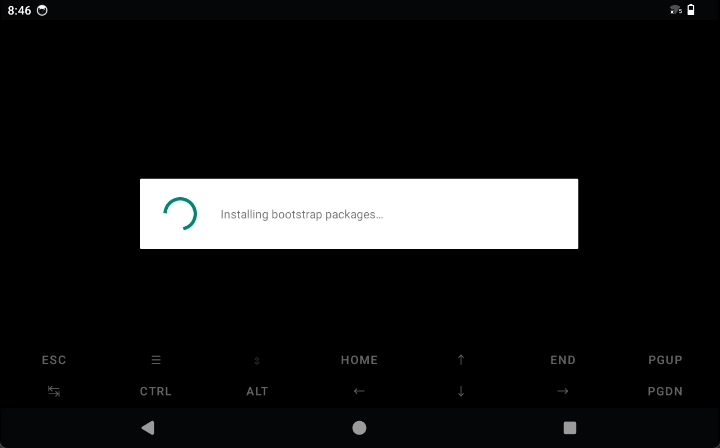
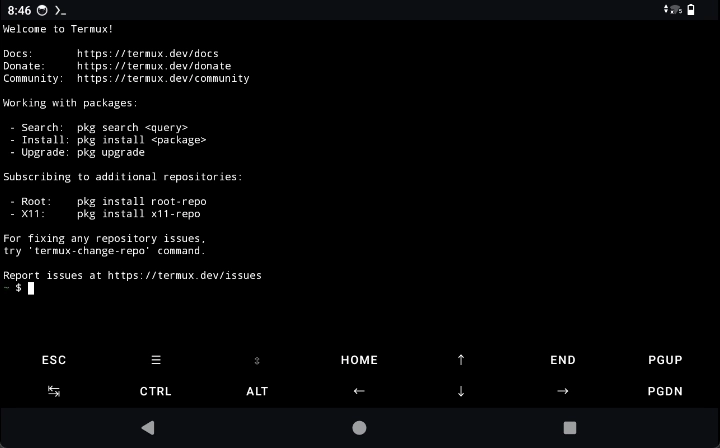
Open the Termux app
Wait for automatic initialization to complete
The basic file system interface will be created automatically
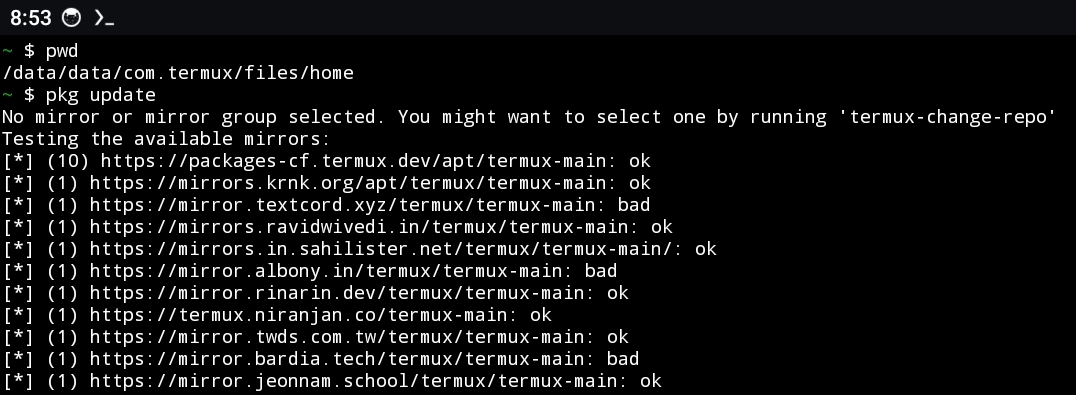
Update the Package List
pkg update
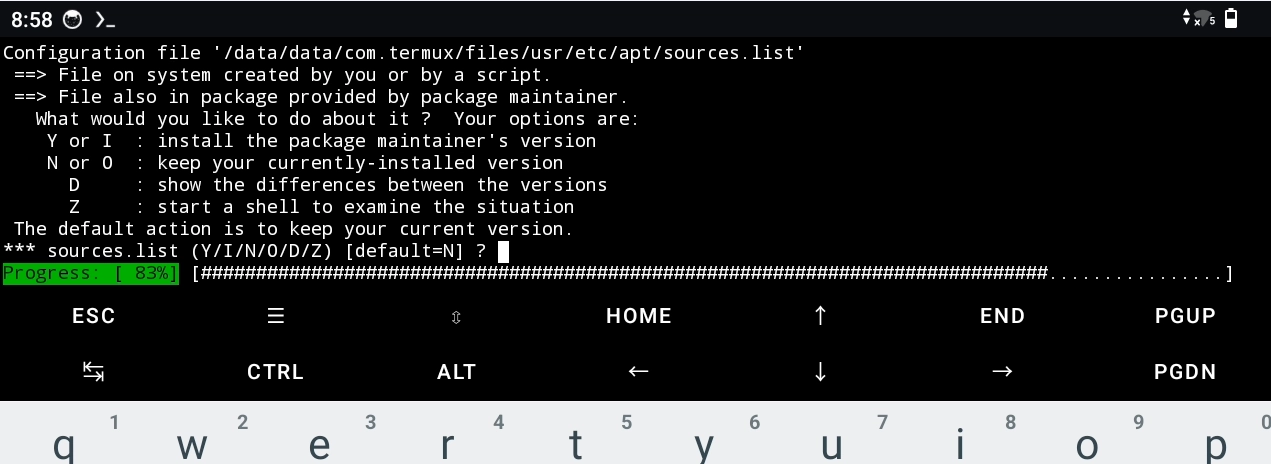
Upgrade Existing Packages
pkg upgrade
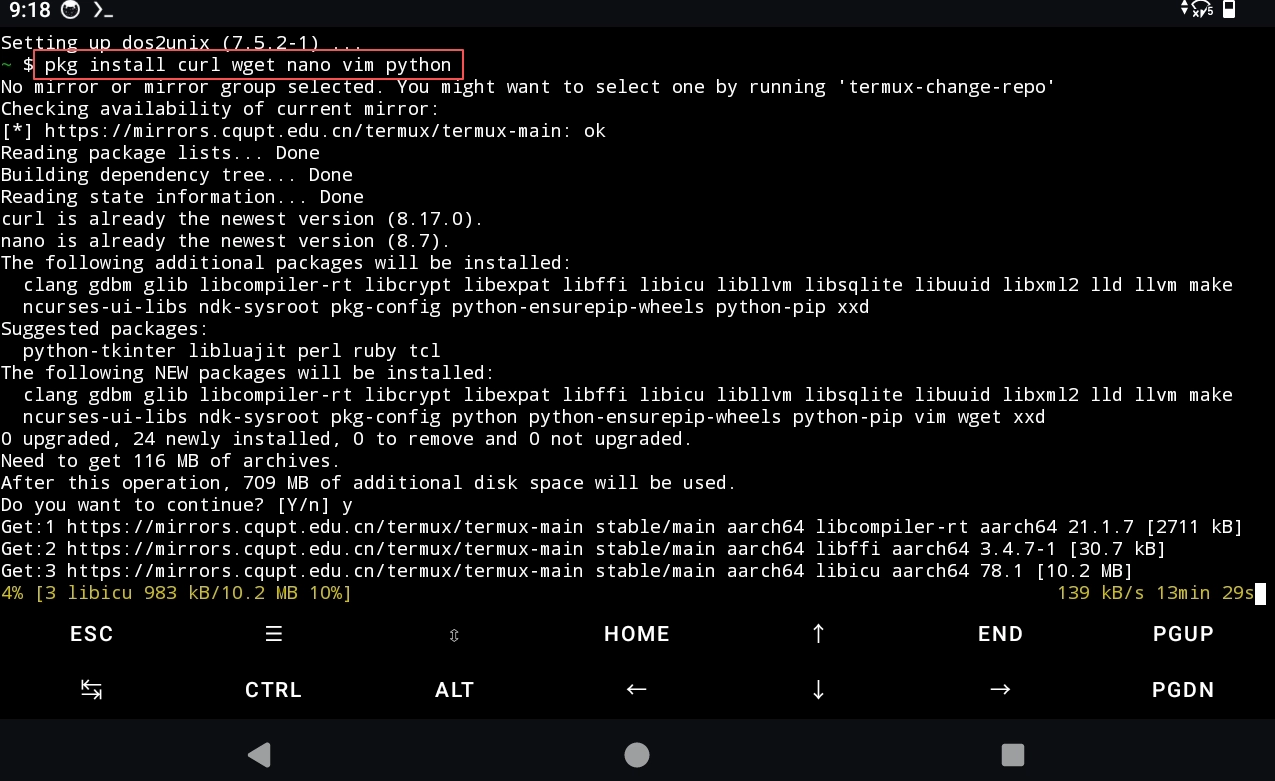
Install Common Tools
# 安装常用软件包
pkg install curl wget nano vim python
Feature Usage
Basic Operations
#  Show current directory
lsls -al

# Create directory
mkdir ./dir1

# Create nested directories
mkdir -p ./dir2/dir3


# Change directory
cd ./dir1

# Return to home directory
cd ~

# Create file
touch test.txt


# Delete files/directories
rm test.txt
cd ~
rm -r ./dir1
Package Management
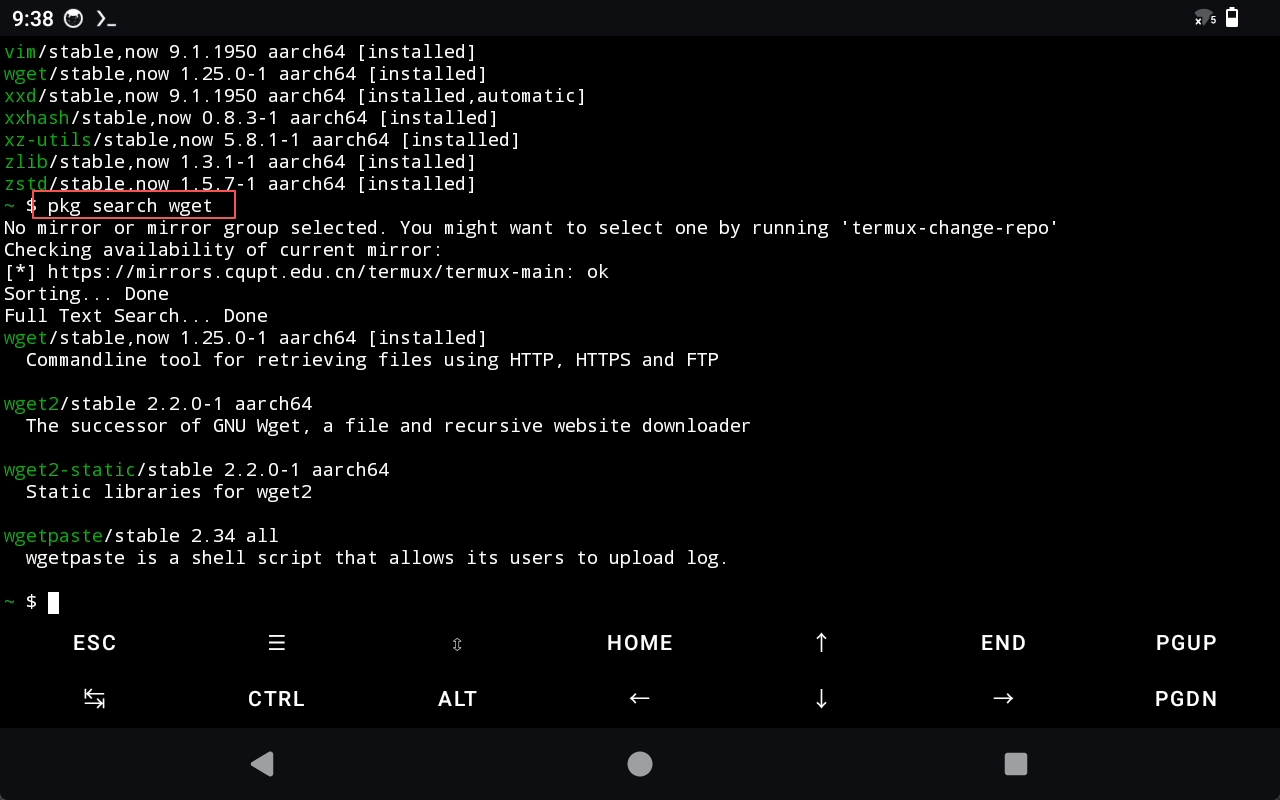
Replace package_name with the name of the package you want to search for.
# Search packages
pkg search package_name

# Install package
pkg install package_name

# Uninstall package
pkg uninstall package_name

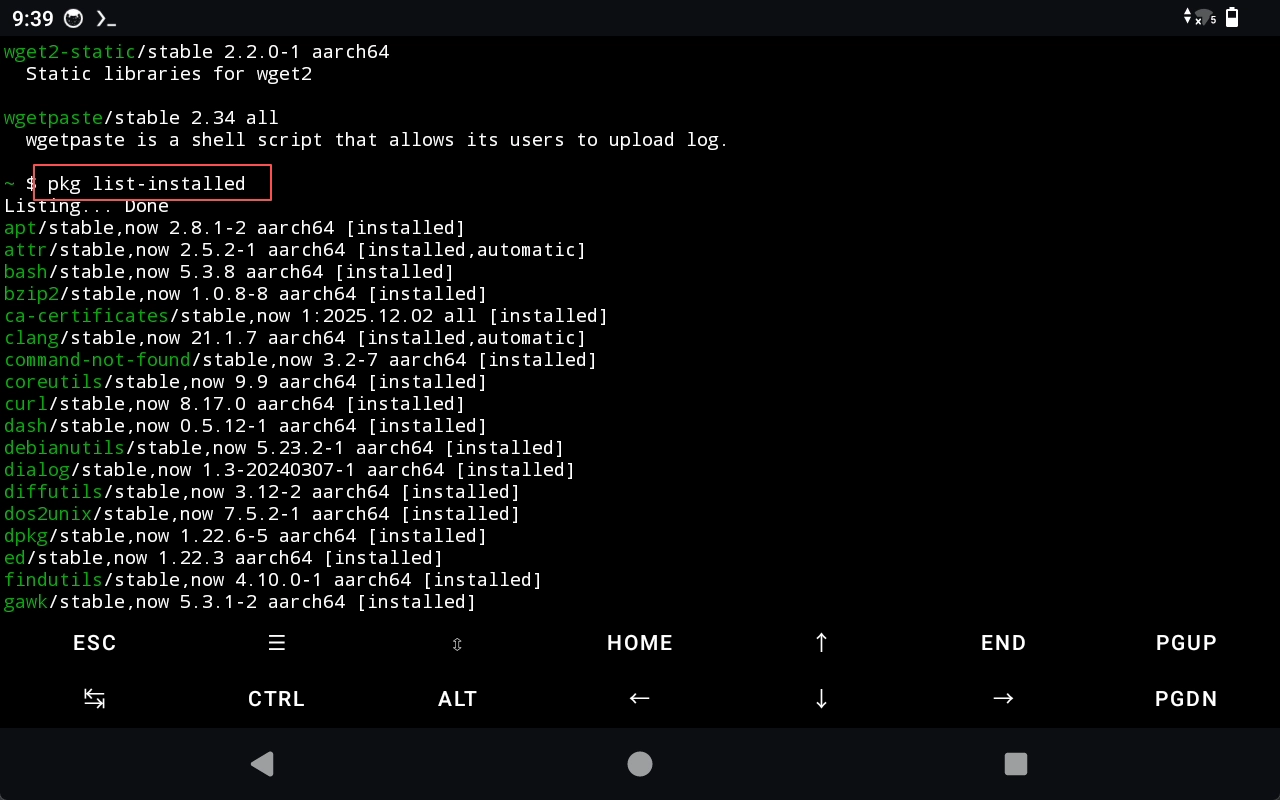
# List installed packages
pkg list-installed
File Editing
# Using nano editor
nano filename.txt

# Using vim editor
vim filename.txt
Network Tools
# Test network connection
ping google.com

# Download files
wget https://example.com/file.zip
curl -O https://example.com/file.zip

# SSH connection
ssh user@hostname
Python Programming
# Run Python script
python script.py

# Install Python packages
pip install package_name

# Create virtual environment
python -m venv myenv
source myenv/bin/activate
Background Execution
# Run command in background
command &

# Use tmux to manage sessions
pkg install tmux
tmux new -s session_name
Storage Access
# Request storage permission
termux-setup-storage

# Access shared storage
cd ~/storage/shared
Custom Configuration
# Edit .bashrc configuration file
nano ~/.bashrc

# Add aliases
alias ll='ls -la'
alias update='pkg update && pkg upgrade'